
FilesGoThere – Guide
A short guide to configure FilesGoThere, understand the workflow, and troubleshoot common issues.
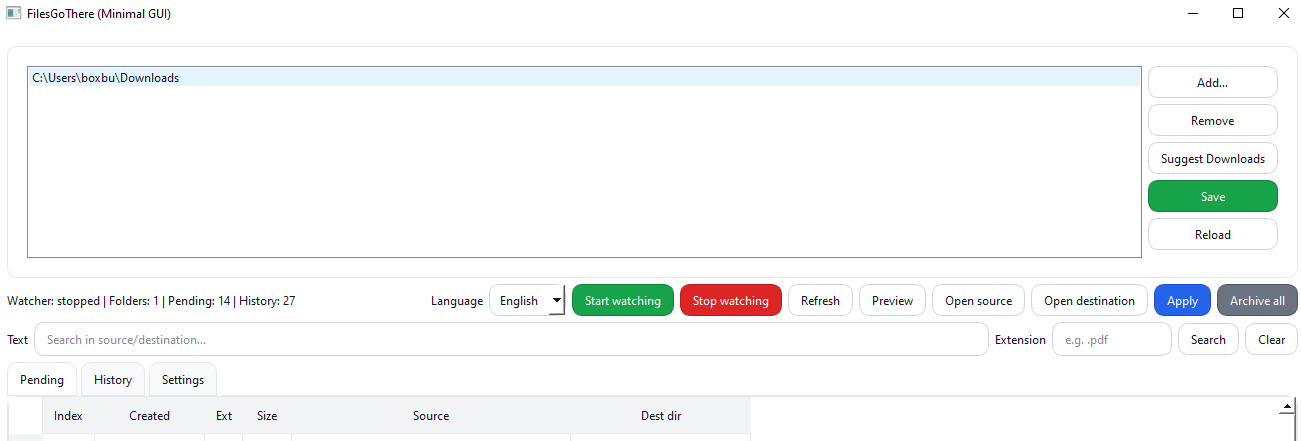
Quick start (2 minutes)
Start simple: choose your folders, save, then start watching.
- Open the app → go to “Watched folders”.
- Click “Suggest Downloads” or “Add…”, then press “Save”.
- Press “Start watching”.
- Select a pending item → Preview → Apply.
Workflow: Preview → Apply
Think of FilesGoThere as a helpful assistant: it suggests actions, you decide when to apply them.
- Preview shows the target destination and warnings.
- Apply performs the move and records it in History.
- Archive all moves pending items to History (it doesn’t delete them).
Manual vs Auto
Manual mode is the default “safe-first” workflow. Auto mode is currently dry-run (no automatic moves).
- Manual: generates queue entries → you Preview/Apply.
- Auto: currently behaves like dry-run (shows what would happen).
Rules: you’re in control
FilesGoThere doesn’t decide for you: it helps you organize, but you define the rules.
Example (Videos, Documents, Images):
{
  "rules": {
    "by_extension": {
      ".mp4": "Videos",
      ".pdf": "Documents",
      ".png": "Images",
      ".jpg": "Images",
      ".jpeg": "Images"
    },
    "default_folder": "Other"
  }
}
- by_extension: maps extension → folder
- default_folder: where unknown extensions go
Windows SmartScreen
If Windows shows “protected your PC”, don’t panic: beta builds are unsigned, so Windows can’t verify the publisher yet.
- Download only from the official GitHub release.
- In SmartScreen: More info → Run anyway.
Where logs and the queue are stored (Windows)
Everything stays on your PC. These files help troubleshooting and are not uploaded anywhere.
%LOCALAPPDATA%\FilesGoThere\config\config.json
%LOCALAPPDATA%\FilesGoThere\data\queue.jsonl
%LOCALAPPDATA%\FilesGoThere\data\queue_done.jsonl
%LOCALAPPDATA%\FilesGoThere\logs\filesgothere.log
- filesgothere.log: event history
- queue.jsonl: pending actions
- queue_done.jsonl: history archive
Common issues (quick fixes)
1) No events / nothing shows up in “Pending”
- Did you add the correct folder in “Watched folders”?
- Did you press “Save” after adding it?
- Did you press “Start watching”?
2) A row shows size 0
- Normal while downloading: the row updates when the download completes.
- If it stays at 0, wait a bit longer or check the download status in the browser.
3) “Auto” does not move files
- In this phase Auto = dry-run: it shows what would happen, but does not move automatically.
- To actually move files: Preview → Apply (manual workflow).
4) Duplicate file name
- Depends on duplicate_strategy: rename / skip / overwrite.
- With “rename” you’ll see names like file (1).ext.
5) Reset everything (fresh start)
- Close the app.
- Rename %LOCALAPPDATA%\FilesGoThere (e.g. FilesGoThere_backup).
- Reopen the app: it starts clean.
FAQ
Does it upload my files? No. Everything runs locally.
Can I watch multiple download folders? Yes, add multiple paths.
Does it work with all browsers? Yes, as long as you watch the correct download folder(s).